Faulty Module ID. This is a problem that comes about sometimes when TW detects two modules with the same “supposedly unique” TW Identifier. This happens when module creators don’t check with Stergiou Costas, theWord creator, for a batch of Module IDs to use.
The Simple Bible Reader program is a program which is made for converting modules from one Bible format to another. I did not create nor do I maintain this program, it is developed by other people.
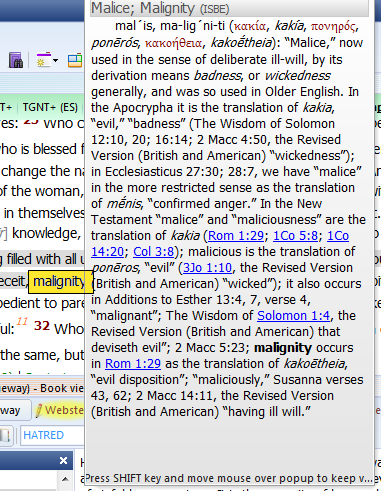
Dictionary Lookup Popup. When you setup this feature of the word, you can quickly lookup the definition of a Bible word in various commentaries completely AUTOMATICALLY with just passing the mouse over the word in a Bible.
Note that TheWord will put as many or as few Bible Dictionaries (optionally any module will work) into the mix to search, and when the popup shows, YOU HOLD DOWN SHIFT and click in the popup window, and you can then scroll down the window to see the different dictionary definitions.
This Bible Dictionary feature is extremely powerful and useful, and you can use it to quickly (almost instantaneously) see many definitions of a word. See below at the bottom of this post for more uses of this feature.
(Note that in the illustrations below, I am highlighting the word I am mousing over in the image so you will see where my mouse is, but in TheWord, the word stays the same color.)
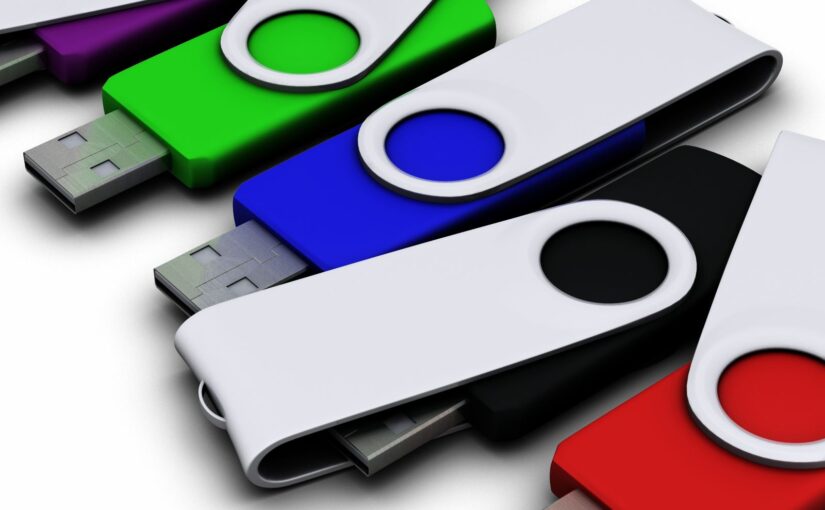
There are times when you want a second “copy” of the program on your hard disk, or you want to install the program onto a USB flash drive, and this post will examine this function, and tell you how to use it. Continue reading How to install TW in Compact Mode (USB mode)
Costas has come up with another way to install TW modules.
This is very easy. Now instead of making new TW modules into an installer exe, we can just zip it up as a compressed file with the extension “*.twzip”.
How to install a TWZip file into theWord?
First of all, you download this file from the Internet. Do not worry about whether they are a bunch of modules in one TWZIP compressed file, or a bunch of single module TWZIPs. Download everything.
Topic: How do I show the BibleView Window Options Icons (at left)
By David Cox
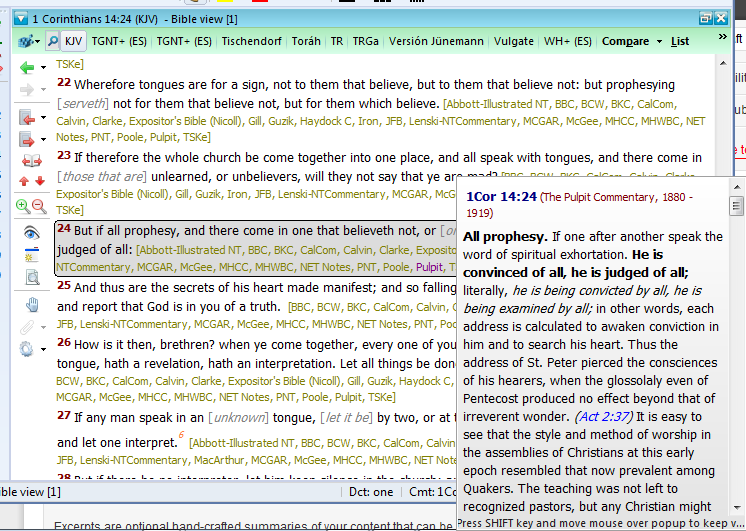
BibleView Window Options Icons. When using theWord, at times you accidentally press a wrong combination of keys, and you are left with something you don’t want. I have been using theWord working in a Bible, and all of sudden the entire left-hand icons disappear on me, well actually, I pressed the wrong keys and they disappeared on me.
For most things with theWord you can go to the main menu at the top, and you can search there for turning something on or off. But in this particular case, you will need to know how to do this while you have the Bibleview window in particular active. Then it is very easy.
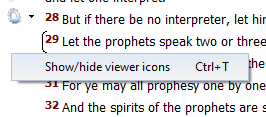
Tip: So if you do not see the left-hand menu Icons in your BibleView. If this is the case, then press Ctrl+T to toggle it on/off or hide/show.
Note that YOU MUST FIRST CLICK IN THE BIBLEVIEW WINDOW TO MAKE IT ACTIVE or this won’t work.
See the image below (icons on left ) for an example of a BibleView Window with this icon column.
Help Tutorial by Paul Chapman
Paul gives us an overview of how to use the left-hand icons in the Bible View window. He explains several of the icons and what each one does.