Class Objective: This class explains the TheWord options for using the program when you have eyesight problems.
Many legally blind people who can still see some are using computers as they can to study the Bible. TheWord has a few options that make using it easier for these people. Continue reading Visually Impaired Users
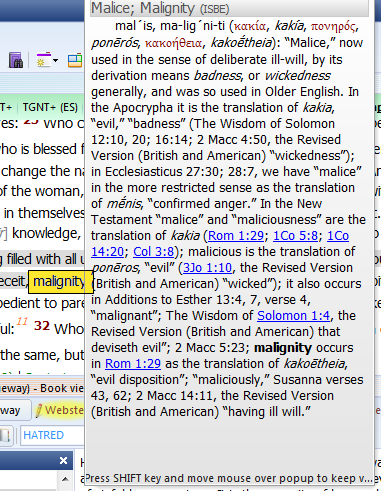
Dictionary Lookup Popup. When you setup this feature of the word, you can quickly lookup the definition of a Bible word in various commentaries completely AUTOMATICALLY with just passing the mouse over the word in a Bible.
Note that TheWord will put as many or as few Bible Dictionaries (optionally any module will work) into the mix to search, and when the popup shows, YOU HOLD DOWN SHIFT and click in the popup window, and you can then scroll down the window to see the different dictionary definitions.
This Bible Dictionary feature is extremely powerful and useful, and you can use it to quickly (almost instantaneously) see many definitions of a word. See below at the bottom of this post for more uses of this feature.
(Note that in the illustrations below, I am highlighting the word I am mousing over in the image so you will see where my mouse is, but in TheWord, the word stays the same color.)
How do I remove so many Bible Versions from the Bible Version Selector Bar without uninstalling them?
!–more–>
There are two solutions to this problem:
1) Permanently remove the Bible version from TheWord.
You can do this by closing down completely (exiting) the program. But before you do, make sure you know where the particular Bible version is located by checking its install folders.
Next shut down TheWord and go to that folder and move the Bibles out of theWord folders to another storage place somewhere else on your computer. This is a simple Windows Explorer activity to move a file.
<
2) Temporarily hide the unwanted Bible version(s) from TheWord.
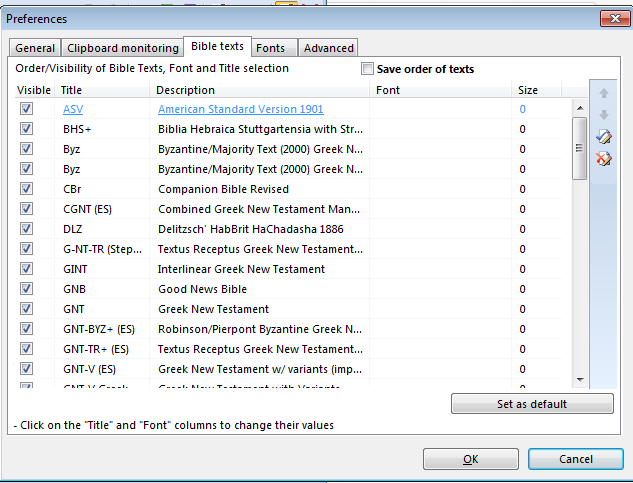
To temporarily hide unwanted Bible version(s) in the Bible Version Selector Bar, go to the Main Menu of TheWord, then Preferences, then click on the “Bible Texts” tab at the top. You should see this screen (different Bible versions of course).
Notice the checkboxes on the left-hand side of this screen (before the Bible version abbreviation). Simply uncheck the ones you do not want to see in the bar. If you later want to see them (you have to remember that you have it installed) then come back here and check it again.
Must-know tricks and procedures of theWord is a class for the beginner in theWord. These tricks or methods or procedures are absolutely necessary for the user to work well in theWord. They should be the first things he learns how to do in theWord program.
Topic: How do I show the BibleView Window Options Icons (at left)
By David Cox
BibleView Window Options Icons. When using theWord, at times you accidentally press a wrong combination of keys, and you are left with something you don’t want. I have been using theWord working in a Bible, and all of sudden the entire left-hand icons disappear on me, well actually, I pressed the wrong keys and they disappeared on me.
For most things with theWord you can go to the main menu at the top, and you can search there for turning something on or off. But in this particular case, you will need to know how to do this while you have the Bibleview window in particular active. Then it is very easy.
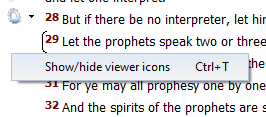
Tip: So if you do not see the left-hand menu Icons in your BibleView. If this is the case, then press Ctrl+T to toggle it on/off or hide/show.
Note that YOU MUST FIRST CLICK IN THE BIBLEVIEW WINDOW TO MAKE IT ACTIVE or this won’t work.
See the image below (icons on left ) for an example of a BibleView Window with this icon column.
Help Tutorial by Paul Chapman
Paul gives us an overview of how to use the left-hand icons in the Bible View window. He explains several of the icons and what each one does.
CLASS OBJECTIVE: In this tutorial class, I will show you how to use theWord inline commentaries function.
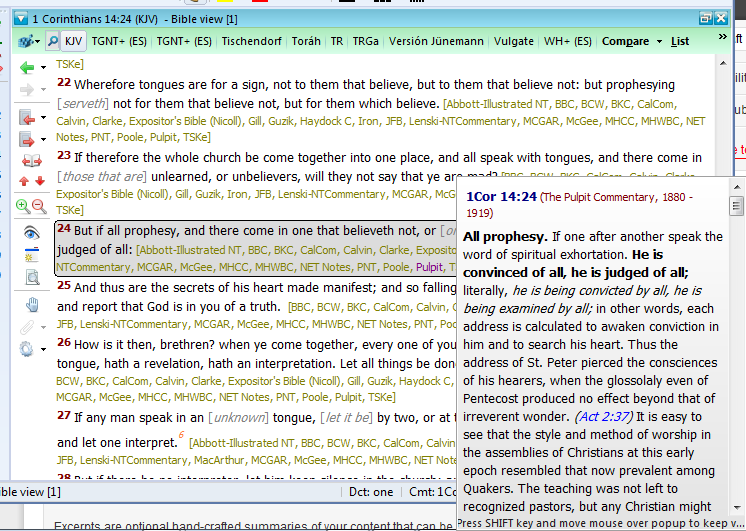
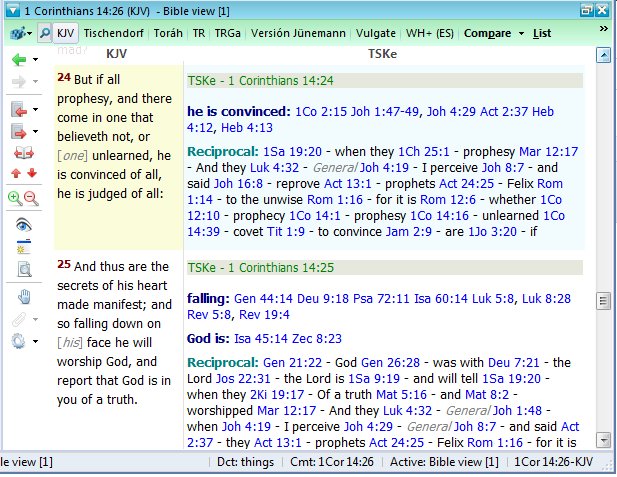
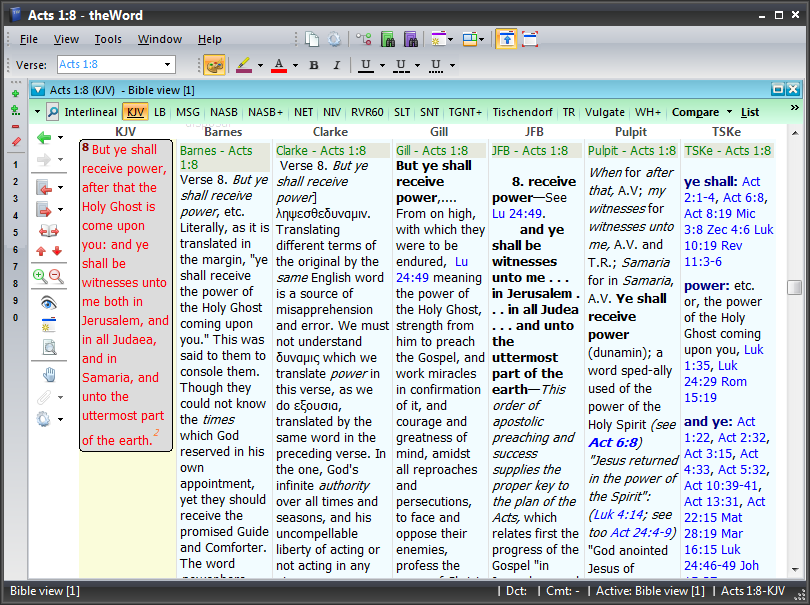
What you see below is a simple BibleView window (KJV on left, commentary on the right). What makes this such a powerful tool is that you can set your commentaries in this inline commentary function, and you can read through/study through a passage of Scripture and read the commentary with it quickly.
Before we get too involved in this one, there is a short-cut key to do this, which first is clicking in the BibleView Window you want the commentaries to appear in, and the typing a single letter:
N – Toggles the commentaries off (hides them).
C – Shows the commentaries below the Bible verse.
T – Show the commentaries besides the Bible verse (see image above for an example of this).
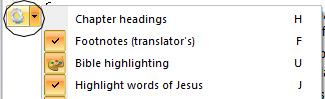
Note that there are two very distinct things here, your quick access to BibleView functions and options, and a full access to the options involved. If you click on the wheel or cog, then you get the full access to set the BibleView Window options. If you click on the down arrow beside the wheel, you will quickly activate or deactivate (hide or show) one of these functions.
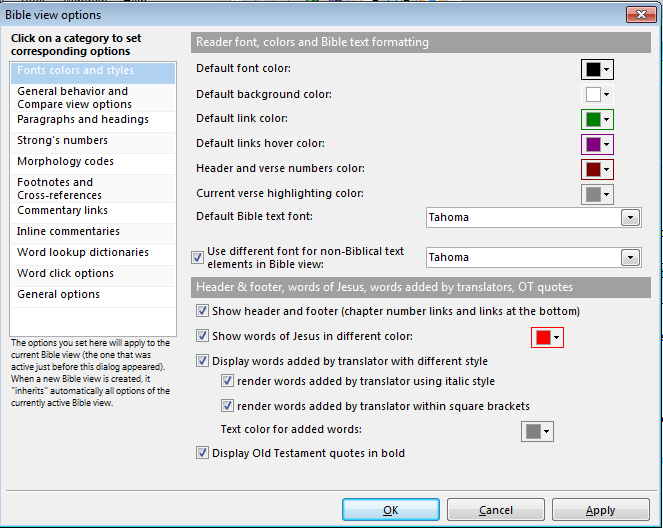
Once having activated the BibleView Window (clicking in it), then you press Control+O to get into the toggle to show this. At this point, you should see something like this.
Now we want to click in the left-hand window to get to inline commentaries section.
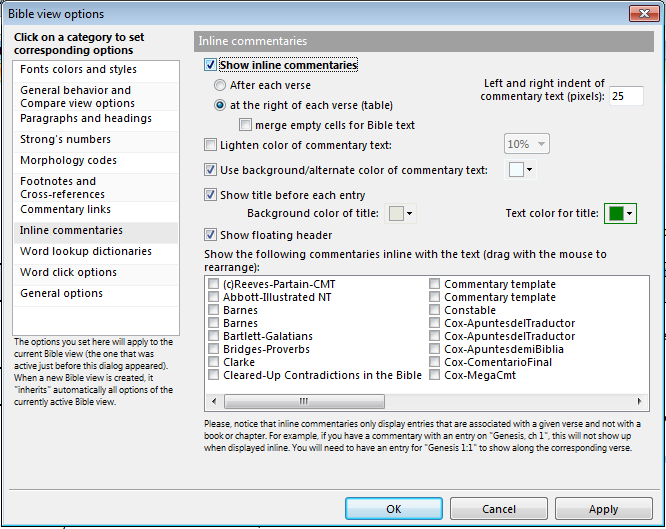
What we see here are the settings for the inline commentary. (Above to activate it by short cut keys, and here in this dialog box you click the topmost checkbox to activate or deactivate it.
You can play with these options to change the “look and feel” of the commentary, but the important point here is that in the mini-window with the listing of your installed commentaries, you can check off the ones you want to see in the inline commentaries.
Note: You see double commentaries because you have more than one installed. In my case, I have some of these commentaries in a “commentaries” folder, and some in the main “books” folder in this installation, and as such, they appear twice. Don’t let this bother you. You can delete the redundant ones if you so desire. It doesn’t hurt to leave them either.
Here I am going to check off my recommended commentaries:
Recommended Commentaries
Click link name of the commentary to go to the download page for that module. All these commentaries are free by the way.
So this (below) is something like what it looks like:
The power of theWord is seen when you set this up, and can quickly scan through a passage and see various different commentaries quickly on a given passage. theWord saves you time, gives you power. Study the image above. This is really a great, powerful tool for Bible study. You cannot underestimate how much you can do with these tools!
Conclusion
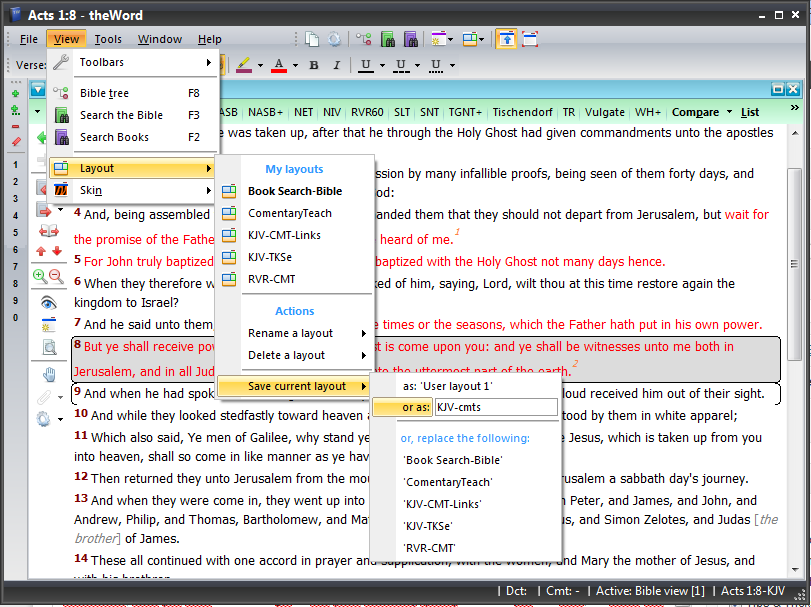
Remember, what you want to do is to get to this point extremely quickly. So once you are here, To make this into a screen layout, Go to the main TW menu, View-> Layout -> Save Current Layout – (name it)
This video goes through making a text sermon using the Commentaries inline.