By David Cox
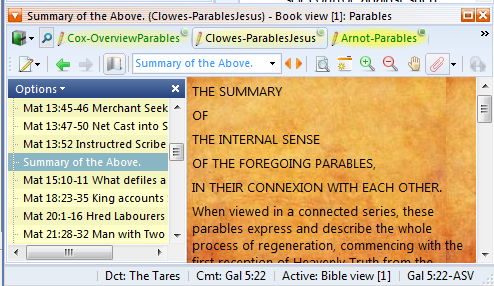
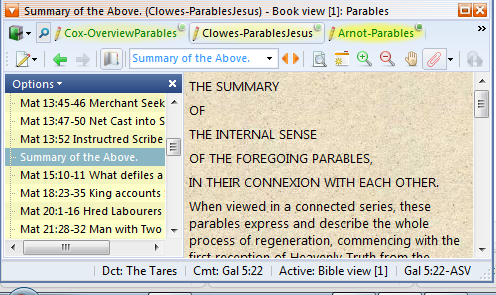
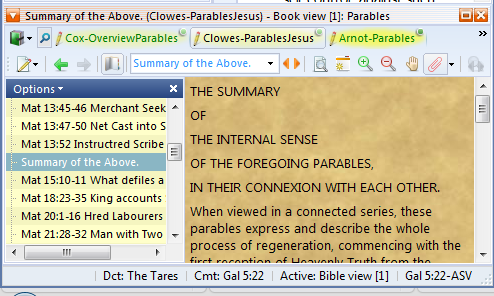
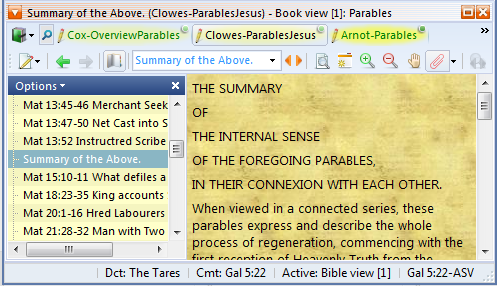
Actually this is very simple to do. Please remember that TW has an “internal memory” of these BookView windows that you set up, and basically every time you open a new one, it will assign it to an internal slot. So if you change the background on a new Bookview window (having 2 others open), and set it to something, it is in the third Bookview window “slot”. You use a different layout with only 1 Bookview window, you will have to follow the instructions below and redo all of this for the number 1 Bookview window slot. This tip is for those of you who like to “pimp up” their software-system… :) Here is an example of what it will look like…
Personally, I would only recommend pastel colors.
How to Make it
First of all open the Module Set Icon (click the triangle to the right of the icon).
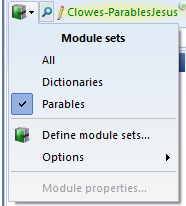
Here click the Options (for using an Image or a Color).
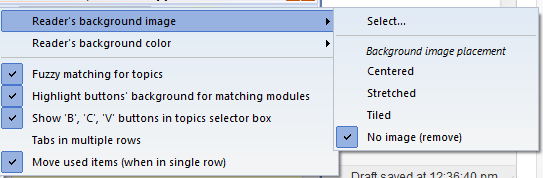
Click on the “Select…” option and then select an image from your hard drive. If you are using something you found on the Internet, you will need to download it to your hard disk first to now install the image here in “Select…”.
PROBLEMS: If you have don’t see the “Reader’s background image” option, try upgrading your version of TheWord. It is probably older.
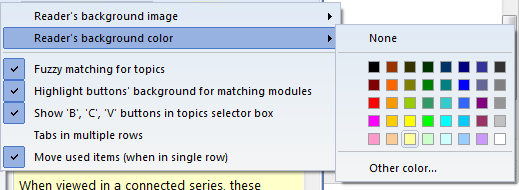
Both of these options are pretty straight-forward. (Note that I set the color first with still shows on the left hand topics list, then the background image.)
Here are some examples… Enjoy!
Download the background image here (Right Click on Image and save to your hard disk, and then install with instructions above):
[wpfilebase tag=file id=49 /]