Inserting Verses in other Programs
Class Objective: To teach the user how to get information from TW into other programs.
Introduction
Okay, so you are now using theWord regularly and you like the ability that it has to search the Bible and other books. But you want to use it to insert Bible verses into your emails, you Powerpoint presentation, or just into your favorite word processor, (no not Microsoft Word, that would be easy, but AbiWord, a fantastic little Microsoft Word knock off that is freeware and just great!). How do I do that?
The TW Watching the Clipboard Function
theWord has a nifty function to help the user insert verses into any application that can take user input. This feature can also be a user with HTML pages on the Internet to just see what the text of a verse or verses is.
The way this works is that theWord has to be running, and after it is running in another window, you go to your other application, type in a Bible reference, highlight it and copy it, and TW will popup the verse, and you can optionally just view the verse references you highlighted and copied to the clipboard, or you can paste them into your other application.
This feature of TW has to be activated before it works. To turn it “on” or “off” you go to the TW main menu and click the File menu option, then Preferences. This will give you the following image (note you have to click on the second tab to see what is in the image below).
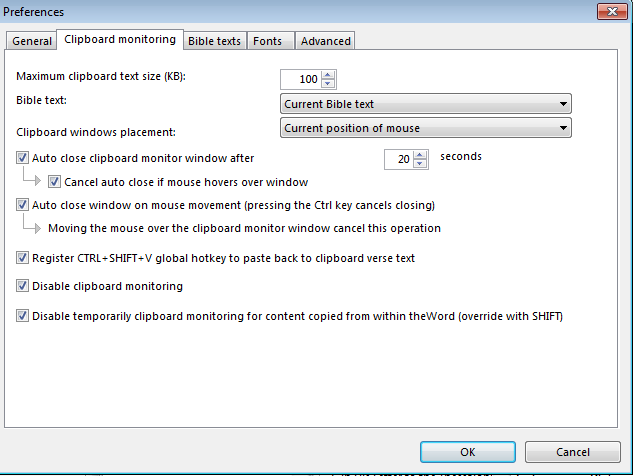 Watching the Clipboard Options). Just unclick the second to the last option (“Disable clipboard monitoring”). Now notice above that, with Ctrl+Shift+V you can globally (in other programs) insert verses into any application even though it isn’t specifically designed to work with theWord, for example, Microsoft Excel, a database program, an email program, etc.
Click ok and close the window.
Invoking the Verse Insertion
Now we are going to use Microsoft Word (any app will work, it is just what I decided to use for the demo). Alt+Tab to your other program, but leave TW running in the background.
Type in a verse reference, highlight it and then press Ctrl+C (standard Windows shortcut key for copying text to the Windows Clipboard).
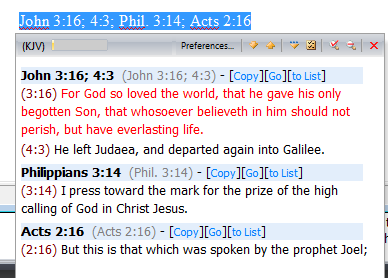
I typed “John 3:16; 4:3; Phil. 3:14; Acts 2:16” highighted it and Ctrl+C.
 Okay, you did this just now and it didn’t work. Did you first go to File-> Preferences, and uncheck the “disable watching the clipboard” checkbox?
Let’s point out a few things about the above image. First of all, notice that it has three verses from different books, and John 3:16 followed by John 4:3. This is a fantastic way to lookup verses quickly in Internet webpages, just highlight, and Ctrl+C, and see the verses. Your option here are to copy the verse to the clipboard, go to the verse in the Bibleview window, or to copy it to a Bible Verse List (See Bible Verse List Feature for a class on the Verse List feature).
Inserting a single verse or passage
Now, depending on how much you have played around with this function (and possibly changed things) you should be able to first select and then copy the reference into the clipboard, (see the above popup), and then if you haven’t changed things, you can press “Control+Shift+V” and TW will remove the Bible reference (first book’s set of references) from the clipboard and replace it with the verses written out.
Note that the format is whatever is set with the Copy Verses option (F5 from within the TW program), so TW gives you a lot of flexibility to change the format of what you are inserting.
The good thing about this is if you are a pastor or a Sunday School teacher, and you are working on a sermon or study, you set TW to watch the clipboard, and you can just type in references into any program you are using, and with selecting, copying (Ctrl+C), and then (Ctrl+Shift+V) you can insert those references into your notes. Note that this works with references all in the same book of the Bible, and it will only insert the references from first book of the Bible in your selection of references.
TIP: How do I stop Windows from switching to my “other application” back to theWord every time I click (copy verse) in the verse popup dialog box?
Keep theWord minimized. (Comment from Costas Stergiou).