
The theWord program can have a multiple of Bibles for you to study with. It can even compare between Bibles, and search for words, phrases, and parts of words across many or all Bibles. But understanding how to use these Bibles with theWord is the key. Continue reading theWord Installing Bibles
Category: Bible Window
Setting Bible Order theWord
When we are Setting Bible Order theWord, then we want to see the Bibles in a particular window. This will be messed up though when you jump back and forth using different Bibles. the order of Bibles will show those most recently used in the bar. When you close down theWord and open it again, it is going to revert to the set Bible order (if you set it that is). Otherwise, it is just whatever order they were in on the Bible bar when you shut down.
Setting Bible Order theWord is very easy. When you want to be Setting Bible Order theWord, follow these instructions.
theWord Bible Verse List Feature
theWord Bible Verse List Feature
By David Cox
Class Objective: To gather a list of verses together to paste into a Word Processor or use within TW.
Note: This feature of TW is available when you click on the “List” icon on the Bible Selector Bar.
theWord Bible Version Selector Bar
theWord Bible Version Selector Bar
By David Cox
Class Objective: In this class, we will show the student how to use the Bible Version Selector Bar to change Bible versions, and also to set some different options related to Bibles.

What you observe in this image (this is the bar about the Bible text) in the BibleView window) is a list of available (installed) TW Bibles. In the above list, the far left (light blue text on white background) is a search window for quickly going to a particular Bible version (in this case, I was searching for the NASB), then a list of Bibles (by abbreviation), and the TR (Greek Textus Receptus) is the currently loaded Bible. Next comes “Compare” Bible Versions and “List” Verses function, and finally a double hash mark “>>” which has the Bible versions which don’t fit on the line. Continue reading theWord Bible Version Selector Bar
Bible View Icons
This video tutorial is by Paul Chapman. This particular video focues on identifying and explaining the different icons in the Bible window.
More Articles from this Category
- YouTube Views Verse Lookup
- Where is Strong’s Numbers in KJV?
- Using theWord Commentary Links
- Using Inline Commentaries
- Two Linked BibleView Windows
- theWord Installing Bibles
Setting the Default Bible Version theWord
Class Objective: How to set the default Bible Version in TW.
Definition: What is the default Bible Version.
TheWord has the ability to use many different Bible versions, and among these are Bibles in English and other foreign languages, specialized Bible versions with Strong’s numbers, footnotes, translator’s notes, cross-reference notes, and a host of other add-ons. Besides that, there exists some TW Bible modules that have more than one translation in them, i.e. Interlineals between Hebrew and English, Greek and English, even the Septuagint and Greek. Besides that, there are Greek and Hebrew Bibles.
With all of these options, there arises a problem. This problem is in certain situations, like when TW has a reference to a Bible in a book or commentary module, which of these Bible versions is the Bible version you want to see? Thus, TW defines a “default Bible version”.
Let me also say that this default Bible version does not have to remain always the same. You can manually change it (via the instructions in this class) so that temporarily some other Bible can be seen by default.
When would you want a different default Bible version?
Personally, I have studied Greek and Hebrew, so I am not unfamiliar with these Bible original languages. Sometimes when I am reading a technical work, most especially a Greek technical commentary, I want to see the Bible references in a Greek Bible. I simply change the default Bible version, and mouseing over a verse reference, I can see the verse in Greek.
Setting the default Bible Version
First of all, you need to click on File then Preferences in the Main TW Menu. In this dialog box, click on the tab “Bible texts“. You should see something like this image.
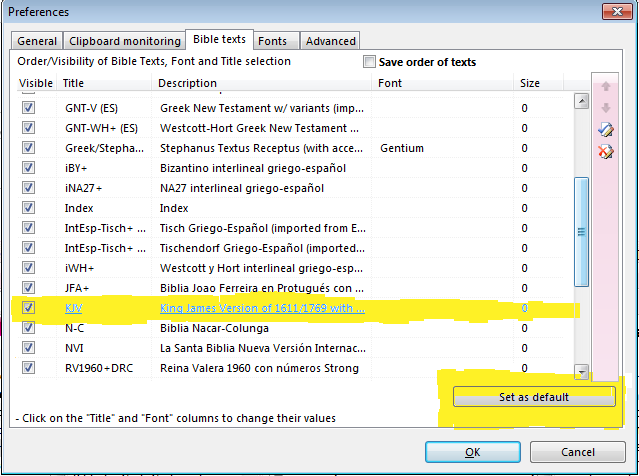 Here I have highlight my default Bible version (KJV). To set it to something else (like Stephanus Greek Bible “Stephanus Textus Receptus” in the image above) you click on the name of the Bible, and then click on the button at bottom (I marked it in yellow) “Set as default”. And that is it!
Note that there is one more switch that you will need to check. In the File-> Preferences Main menu option, you need to check the advanced tab, and you should see this image.
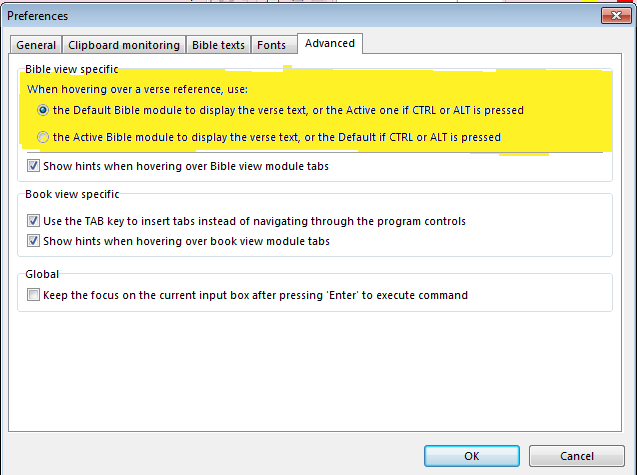
The two options at the top (highlighted in yellow) will tell TW to always popup the active Bible version or the default Bible version (set according to this class).